Import and export
Import bookmarks
From another browser
- Click → Bookmarks → Import bookmarks from another browser.
- In the Data import window, select the browser you want to import bookmarks from.
- Select Bookmarks. If you want to import only bookmarks, deselect other options.
- Click Import. A window opens with a notification about successfully importing bookmarks.
- If necessary, disable the Show bookmarks bar option.
- Click Ok.
From an HTML file
- Click → Bookmarks → Bookmark manager.
- In the Bookmarks bar line on the right, click → Import bookmarks from HTML file.
- Specify the path to the file containing your bookmarks and click Open.
The imported bookmarks will be put:
- to the Bookmarks from HTML file folder, if there already were bookmarks in Yandex Browser.
- to the root of the bookmark tree, if there were no bookmarks in Yandex Browser.
You can rename, move, or delete a folder with bookmarks. To learn more, go to Folder structure.
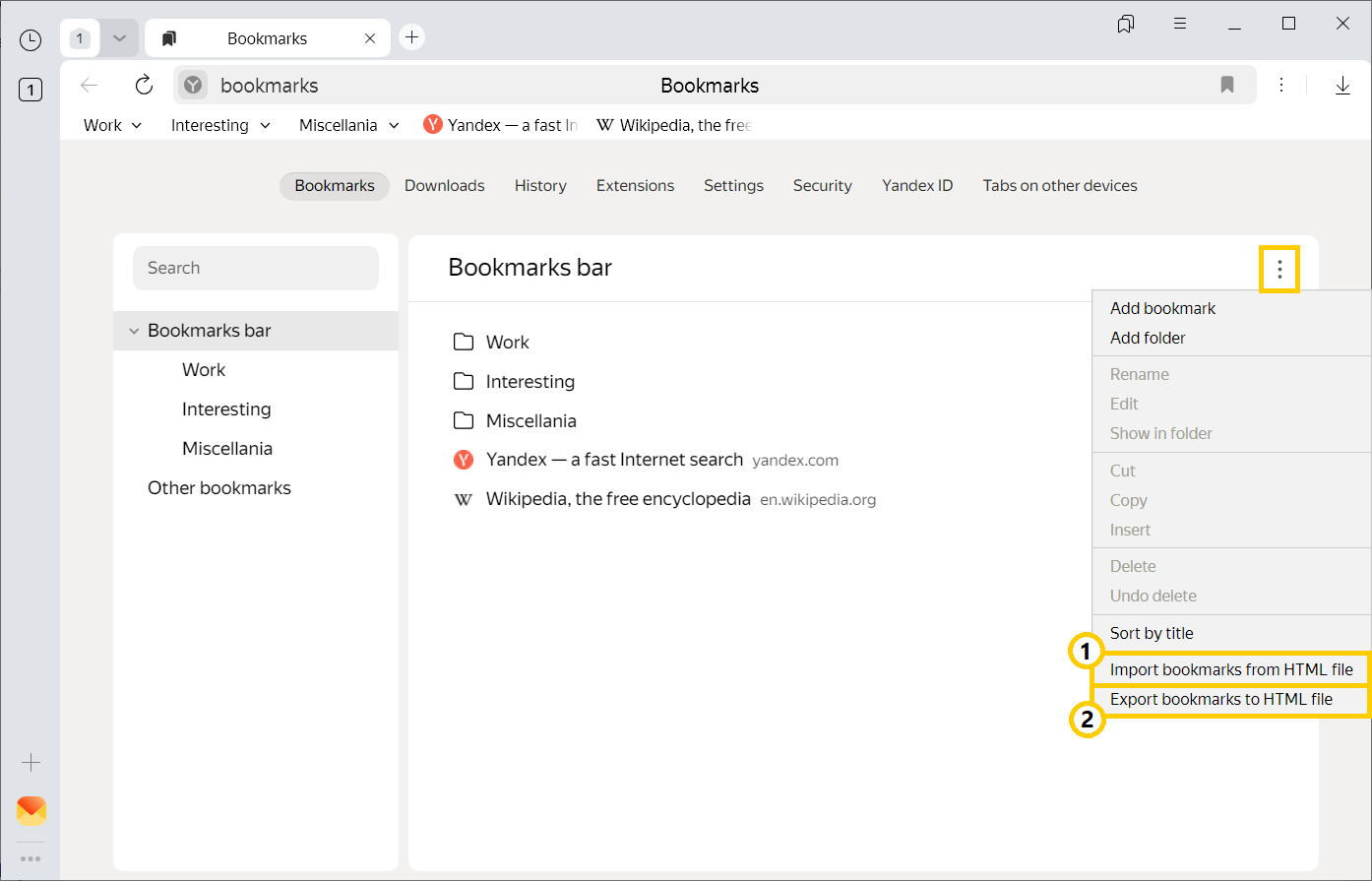
— Import bookmarks from a file.
— Save bookmarks to a file.
Export bookmarks to a file
-
Click → Bookmarks → Bookmark manager.
-
In the Bookmarks bar line on the right, click
 → Export bookmarks to HTML file.
 -
Select a place to save your bookmarks file.
-
Enter a name for the file and click Save.
Was the article helpful?
Previous